IBO Player setup guide for KemoTivi
IBO Player is the only application KemoTivi supports, and that is deliberate: one app means one predictable set of instructions, one place for bugs to be fixed and one support script our desk knows inside out. This guide covers installation on every common device, then walks through playlist activation, the Live TV interface and the settings worth changing on day one.
Before you start
You need three things: an active KemoTivi subscription (order one on the checkout page if you have not yet), a streaming device connected to the internet, and the credentials email we send after activation. That email contains either an M3U streaming line or a set of Xtream Codes details — both work, and the steps for each are covered below.
One subscription authorises one device at a time. If you want to move from a Fire TV Stick to a Smart TV later, contact the desk and we will re-point the line rather than charging you for a second subscription.
What IBO Player does well — and where it does not
Being honest about an app builds more trust than pretending it is flawless, so here is the short version.
The strengths
- It installs almost anywhere. Android, Windows, Fire TV, macOS, LG WebOS and Samsung Tizen are all supported from one codebase.
- It is the sensible choice for non-Android Smart TVs. LG and Samsung owners often have very few decent options, and IBO Player is the most stable of them.
- Remote playlist activation. You manage the playlist in a browser, not with a TV remote — a genuine relief on a Smart TV keyboard.
The limitations
- No recording. There is no PVR or catch-up-to-disk function in the app.
- No multi-screen. You cannot watch two channels side by side; this also matches our one-device policy.
- The app itself carries a small one-time licence fee. That payment goes to the IBO developers, not to KemoTivi, and it is separate from your subscription.
Install IBO Player on your device
Pick the section that matches the hardware sitting under your television.
Android phones, tablets and boxes
Easiest platform of the lot, because you have a browser.
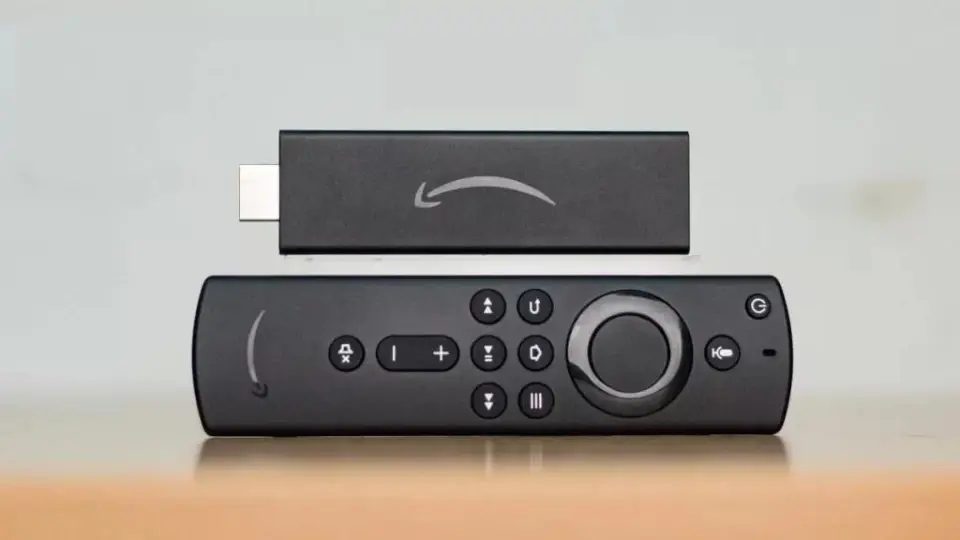
Amazon Fire TV Stick
Needs the Downloader app first, then a short code.
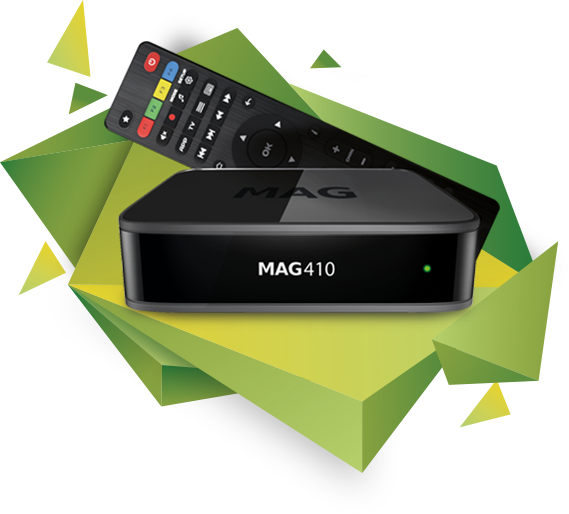
MAG, Formuler and STB boxes
Portal-based devices are configured by our desk on request.
Android phones, tablets and Android TV boxes
-
Download the installer
Open the browser on your Android device and fetch the IBO Player installation file from the developer's official website. If you are not sure which build you need, ask our desk and we will send the direct link.
-
Accept the outside-store warning
Android warns you because the file did not come from the Play Store. The download is safe — choose Download Anyway to continue.
-
Open the downloaded file
Tap the file from your notification tray or the Downloads folder to launch the installer.
-
Install and launch
Select Install, wait a few seconds, then open IBO Player. You are ready for the playlist step further down this page.
Windows 10 and 11
IBO Player runs on Windows 10 and above; the installer is 64-bit only.
-
Download the Windows installer
Grab the desktop build from the developer's site. Save it somewhere you can find again, such as the Downloads folder.
-
Get past Windows SmartScreen
Windows will block a file it has not seen before. Click More info, then Run anyway.
-
Work through the installer
Click Next, tick the desktop-shortcut box if you want one, click Next again, then Install.
-
Finish and open
Click Finish to launch IBO Player for the first time.
Amazon Fire TV Stick
The Fire TV Stick needs a side-loading helper because IBO Player is not in the Amazon store.
-
Search for Downloader
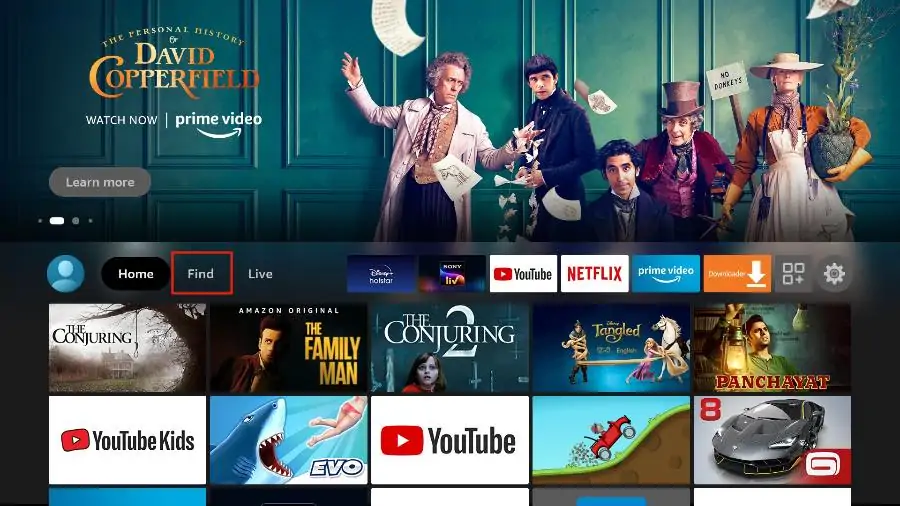
From the Fire TV home screen, highlight the magnifier icon, press down into the search field and press OK. Type D and pick Downloader from the suggestions.
-
Install Downloader
Select the app, choose Download, and allow media access when the permission prompt appears.
-
Enter the IBO Player code
Open Downloader, move to the URL field above the yellow Go button, press OK and type the official Downloader code for the IBO Player Android build: 511693. Select Go.
-
Wait for the download
Downloader switches to its Browser section and pulls the file directly from the official source. Do not press anything until it finishes.
-
Allow unknown apps
Fire OS will block the install. Choose Settings, then Install Unknown Apps, and enable the permission for Downloader. Go back and complete the installation.
-
Open IBO Player
Launch the app and continue to the playlist section below.
macOS
Download the Mac build from the developer's website, open the disk image and drag IBO Player into your Applications folder. On first launch, macOS Gatekeeper may ask you to confirm the app; approve it from System Settings → Privacy & Security and reopen the application.
LG and Samsung Smart TVs
Non-Android televisions are fully supported, and the steps are almost identical between LG WebOS and Samsung Tizen.
-
Open the TV app store
On LG this is the LG Content Store; on Samsung it is the Samsung Apps panel.
-
Search for the app
Use the magnifier icon in the top-right corner and type IBO Player.
-
Pick the correct result
Several look-alike apps use similar names. Select only the one listed as IBO Player and ignore the variations.
-
Install and launch
Choose Install, then Launch. A welcome screen appears on first run — leave it open, because the next section needs the information shown there.
Step two: add your KemoTivi playlist
IBO Player uses remote playlist activation. Rather than typing a long URL with a TV remote, you log into the IBO Player website in a browser, save your playlist there, and it appears on the television automatically. Your subscription details come from the activation email we send after you order on the checkout page.
-
Open Manage Playlist
On a phone or computer, go to the IBO Player official website and click Manage Playlist in the top menu.
-
Find your MAC address and device key
On the television, open IBO Player and click the profile icon on the main dashboard. The Device Info panel in the top-left corner shows both values.
-
Log in to the playlist manager
Type the MAC address and device key into the web form and sign in. You are now in the playlist management area for your specific device.
-
Choose the method that matches your credentials
If KemoTivi sent you a single long streaming line, use Add Playlist. If you received a host, username and password, use Add XC Playlist. Both are detailed below.
Method A — Add Playlist (M3U streaming line)
Click Add Playlist and fill in the fields:
- Playlist name — anything you like; "KemoTivi" keeps it obvious.
- Playlist URL — paste the streaming line exactly as it appears in your activation email, with no trailing spaces.
- XMLTV EPG URL — optional. Leave it blank and IBO Player pulls the programme guide straight from the playlist. Only fill this in if you are using a third-party EPG source.
- Protect this playlist — tick it to set a PIN, which is worth doing in a household with children.
Click Save when you are done.
Method B — Add XC Playlist (Xtream Codes login)
Click Add XC Playlist. The fields are the same as Method A with one addition: Host, which is the server address from your email. Enter the host, your username and your password, then save.
Reload and watch
Go back to the television, reload the IBO Player dashboard, and your channels, VOD shelves and programme guide populate within a few seconds. If the grid looks empty, wait thirty seconds and reload once more before contacting us.
Getting the Live TV screen right
Out of the box, the Live TV layout is the single most common complaint we hear. Channel names overflow underneath the preview window and the EPG sits at an odd angle. It is a two-minute fix.
-
Open the screen style setting
From the IBO Player dashboard, click the screen icon next to the Wi-Fi symbol.
-
Switch the Live Screen Style
The default is Malai TV Style, which is the messy one. Change it to Thai and click Save.
-
Check the result
Channel names now have room to breathe, the mini preview fits properly and the programme guide lines up. To bring the category column back, press the left arrow on your remote — or the back gesture on a touch device.
Favourites and search
With a grid this large, favourites are not optional. Highlight any channel in the Live TV list and hold the OK button to add it to your favourites row; it then appears at the top of the list on every launch. The search field in the same screen filters by name as you type, which is far faster than scrolling through a 30,000-line list.
Movies and series
The VOD sections behave like a normal streaming catalogue: browse by category, open a title for its synopsis and poster, then play. Series are grouped by season, and resume points are remembered per episode.
Settings worth knowing
- Network — confirms which connection the app is using; useful when diagnosing a slow stream.
- Parental control — sets a PIN over adult categories.
- Manage categories — hides the country blocks you will never watch, which makes the whole interface feel lighter.
- Live TV player / VOD player — lets you switch decoder if a specific stream stutters.
- Clear cache — the first thing to try if artwork stops loading.
- Auto boot on start — opens IBO Player the moment the device powers on.
- Check for updates — worth running monthly.
Stuck on a step?
Our desk installs this several dozen times a week and will happily do it with you over WhatsApp. Reach out from the contact page, or read the FAQ for the quick answers. Not yet subscribed? The Try 1 Month plan is CA$10.99.
Order Your Subscription